










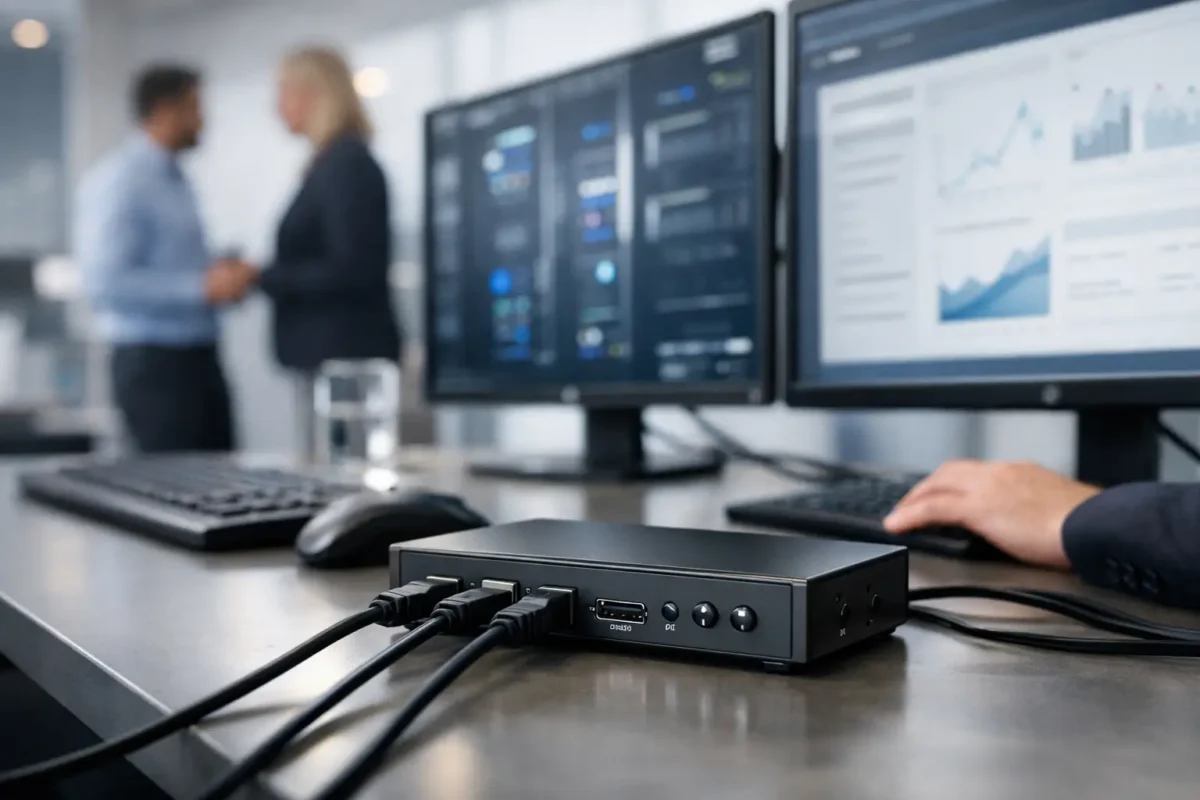
A KVM switch is a small purchase that can remove a surprising amount of desktop clutter, rack-room delay and access risk. The best KVM switches let one keyboard, monitor and mouse control multiple computers without compromising the video resolution, USB devices or security controls your environment requires. The wrong unit, however, can leave a user with poor display output, unreliable hotkeys or no practical path to remote recovery.
For IT teams, the starting point is not the number of ports. It is the job the switch must perform: local control of two workstations, shared access to a group of servers, or out-of-band management when an operating system or network service has failed. Those are different requirements, and they call for different KVM hardware.
What makes the best KVM switches?
A KVM switch combines keyboard, video and mouse connections so that a single console can operate more than one host. Modern models often also switch USB peripherals, audio, Ethernet or serial devices. In a business setting, the practical benefit is simple: fewer screens and input devices on a support desk, less physical console hardware in a rack, and quicker access to systems that cannot be managed over the network.
The best choice depends on four areas: host count, display standard, peripheral support and access location. A two-port HDMI unit for a finance desk is not interchangeable with a 16-port KVM-over-IP appliance used to maintain servers across several sites.
Do not buy on port count alone. An eight-port switch may look like better value than a four-port model, but it can be a poor fit if it lacks EDID emulation, cannot retain monitor settings between hosts, or supports only basic USB input devices. Equally, paying for 4K 60 Hz capability makes little sense for legacy server consoles that run at 1080p.
Video compatibility comes first
Check every connector before comparing prices. HDMI, DisplayPort, DVI and VGA remain common across mixed estates, particularly where older servers and industrial systems are still in service. Adaptors can help, but they are also a frequent source of display detection problems. Native connections are preferable where possible.
For desktop users, 4K at 60 Hz is the sensible baseline for current business laptops and workstations. Designers, traders and engineering teams may need dual-monitor operation, higher refresh rates or specific DisplayPort capabilities. For server rooms, reliable 1920 x 1080 output is often sufficient, but confirm the maximum resolution of the KVM and each target device before deployment.
EDID handling deserves attention. This feature helps each connected computer believe that the monitor remains attached after you switch away. Without it, windows can rearrange, a remote session can change resolution, or a host can fall back to an unsuitable display setting. It is a minor line in a specification sheet and a major quality-of-life feature in daily use.
USB is more than keyboard and mouse
A basic KVM uses USB HID emulation for a keyboard and mouse. That is ideal for dependable switching, but it does not necessarily support smart-card readers, webcams, USB storage, headsets, touchscreens or specialist input equipment. If users need to move these devices between computers, look for separate USB 3.x peripheral ports rather than assuming every USB socket is switchable.
This distinction matters in secure environments. Some organisations should not permit USB storage to pass between hosts at all. In that case, a KVM with keyboard-and-mouse-only emulation and strong host isolation can be the safer choice. Convenience is valuable, but not at the cost of policy compliance.
Best KVM switch types by deployment
Dual-monitor desktop KVMs for power users
For an administrator, developer or analyst running a primary workstation alongside a managed laptop, a two-port dual-monitor KVM is often the best fit. Choose a model with the correct combination of HDMI or DisplayPort inputs and outputs, 4K 60 Hz support, USB 3.x sharing and front-panel switching. Hotkey operation is useful, but a physical button remains the fastest option when troubleshooting.
ATEN and StarTech models are widely specified in professional desktop deployments because their ranges cover common display combinations and practical USB requirements. TESmart units can offer attractive multi-display specifications for budget-led setups, although support expectations, cabling quality and long-term availability should be assessed carefully before standardising across a large estate.
The trade-off is cable density. A dual-monitor, two-host installation can require multiple video leads plus USB connections and power. Measure the desk, identify cable routes and confirm whether the unit needs its own power supply. A cheap switch is not a saving if the installation becomes unreliable or difficult to service.
Multi-port local KVMs for bench and rack use
A four, eight or 16-port local KVM makes sense when several servers sit in the same rack or technical workspace. It keeps a single local console available for BIOS configuration, operating system installation and fault diagnosis. This remains useful even in highly virtualised environments, because hardware failures do not wait for remote management tools to be available.
For this role, prioritise dependable console switching, rack-mount options, clear port labelling and support for the interfaces present in your estate. Traditional VGA and USB KVMs can be cost-effective for older server fleets. HDMI and DisplayPort models better suit newer appliances, but may cost more and demand more careful cable management.
Look for proper power-loss behaviour as well. A switch should recover cleanly after an outage without confusing host assignments or losing console access. In a rack environment, a replaceable or readily available external power supply can be more useful than an elegant desktop design.
KVM-over-IP for remote server administration
For distributed sites, lights-out rooms and critical infrastructure, KVM-over-IP is the category to consider. These appliances provide remote keyboard, video and mouse control over an IP network, allowing authorised administrators to access a server at pre-boot level. That is different from Remote Desktop or SSH: it can remain available when the operating system is unresponsive, provided the KVM appliance and its network path are working.
Raritan Dominion, Vertiv Avocent and Lantronix are established names in this space. Product ranges vary from compact single-server devices to enterprise appliances with serial access, virtual media, user directories and large port counts. The correct choice is determined as much by authentication and network design as by the number of attached servers.
Check for encrypted remote sessions, role-based permissions, audit logging, directory integration and support for virtual media. Virtual media lets an administrator mount an ISO image or installation media remotely, which can save a site visit during recovery or provisioning. It can also introduce security and bandwidth considerations, so it should be controlled appropriately.
A KVM-over-IP appliance is not a replacement for a proper out-of-band management strategy. Where servers have dedicated management controllers, use them alongside KVM access rather than treating either as a complete substitute. Redundant management connectivity, documented credentials and tested recovery procedures matter more than the badge on the front panel.
Secure KVMs for separated systems
Secure KVM switches are designed for users who must operate computers at different security classifications or on isolated networks from one console. They typically prevent data transfer between hosts, apply strict port isolation and provide tamper-evident features. Government, defence, finance and regulated environments may have specific approval requirements, so the unit must be selected against the relevant policy rather than a generic desktop specification.
This is an area where feature-rich consumer KVMs can be the wrong answer. Audio sharing, USB device switching and universal clipboard-style functionality might be convenient, but they may defeat the purpose of keeping systems separate. Buy for the required security certification, permitted interfaces and approved operating procedure.
Specifications to verify before ordering
A careful purchase order should record the host interface, console interface, required resolution, number of displays, USB device types and desired switching method. Also confirm cable lengths, power requirements and whether proprietary cable kits are required. Enterprise KVM systems can use specialist computer interface modules, so a base appliance alone may not complete the installation.
For used or surplus equipment, check the exact part number, included power supply, mounting hardware, firmware status and licence position. A discounted enterprise KVM can be excellent value when it matches an existing deployment, but older units may have browser compatibility limits, discontinued support or missing digital access features. Used hardware is strongest when you know the environment it is joining and can validate it before a critical rollout.
Avoid mixing assumptions with specifications. A DisplayPort connector does not guarantee 4K 60 Hz. A USB port does not guarantee support for a smart-card reader. An IP address does not guarantee secure remote access. Verify the manufacturer documentation and plan the full connection path, including monitor, cables, host graphics output and network controls.
A practical buying decision
For most desks, buy a two-port or four-port KVM with native video connections, EDID support and the USB sharing your users genuinely need. For a local server rack, select a rack-mountable multi-port unit that matches the installed server interfaces. For remote support across sites, invest in KVM-over-IP with encryption, audit controls and a properly separated management network. For classified or segmented systems, choose an approved secure KVM and accept the deliberate limits on peripheral sharing.
The best KVM switch is the one that preserves access when something else has failed, while fitting the displays, peripherals and security rules already in place. Specify it carefully, keep compatible cables and power accessories available, and test the switching workflow before it becomes the only console left in the room.
